
Views: 222 Author: Mia Publish Time: 2026-01-22 Origin: Site
Content Menu
● What Is a Bobblehead Photoshop Effect?
● Preparing Your Image for a Bobblehead Photoshop Project
>> Choosing the Right Photo for a Bobblehead
>> Setting Up the Photoshop Document
● Step by Step: Basic Bobblehead Photoshop Workflow
>> Step 1: Separate the Head from the Body
>> Step 2: Create More Headroom for the Bobblehead
>> Step 3: Enlarge the Head for the Bobblehead Effect
>> Step 4: Optionally Shrink the Body
>> Step 5: Blend the Neck and Collar Seam
● Advanced Bobblehead Photoshop Techniques
>> Cartoon and Poster Effects for a Stylized Bobblehead
>> Using Liquify for Caricatured Bobblehead Features
>> Adding Shadows and Depth to the Bobblehead
● Enhancing Bobblehead Projects with Backgrounds, Text, and Color
>> Background Choices for Bobblehead Designs
>> Adding Text and Graphic Elements
● Using Bobblehead Photoshop for Marketing and Product Mockups
>> Social Media and Content Marketing
>> Custom Bobblehead Product Mockups
● Tips and Best Practices for Professional Bobblehead Photoshop Results
● Common Mistakes to Avoid in Bobblehead Photoshop
● Exporting and Sharing Your Bobblehead Photoshop Creations
>> Export Settings for Web and Print
● FAQ
>> 1. What is the easiest way to create a Bobblehead Photoshop effect?
>> 2. Which tools do I absolutely need for a Bobblehead project in Photoshop?
>> 3. How large should the head be in a Bobblehead Photoshop design?
>> 4. Can I create a Bobblehead effect from a group photo?
>> 5. How can I make my Bobblehead Photoshop result look more cartoon like?
Creating a fun Bobblehead effect in Photoshop is one of the easiest ways to turn a regular portrait into a playful, cartoonstyle character. With a few selection, transform, and retouching tools, you can build a convincing bigheadsmallbody Bobblehead illustration suitable for social media, posters, product mockups, or custom gift designs. Once you master the Bobblehead workflow, you can reuse it for profiles, marketing campaigns, or to preview real custom Bobblehead products based on customer photos.
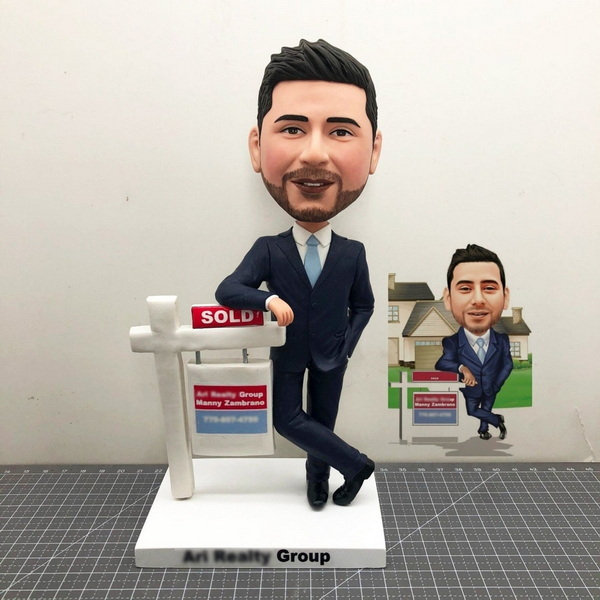
A Bobblehead Photoshop effect exaggerates the size of the subject's head compared with the body, imitating the proportions of a physical Bobblehead doll. Instead of editing 3D models, you use 2D image manipulation techniques in Photoshop to create the illusion of a large, slightly floating head on a smaller body.
Typical characteristics of a Bobblehead Photoshop result include:
- A dramatically enlarged head compared with the body, similar to a real Bobblehead.
- A smaller or shortened body that increases the contrast between head and torso.
- Clean edges and carefully blended neck and collar areas so the Bobblehead looks natural within the scene.
Because the Bobblehead effect is instantly eyecatching, it works well in banners, thumbnails, and any visual where you need to highlight a person in a fun way.
Before starting any Bobblehead Photoshop work, you need the right source image and a wellsetup document. Good preparation makes the later steps smoother and improves the overall Bobblehead quality.
For the best Bobblehead Photoshop result:
- Use a highresolution photo so the head can be enlarged without visible pixelation.
- Choose images where the whole head is visible and not cropped off at the top or sides.
- Prefer photos where the person is standing or sitting upright, with the body reasonably visible.
- Avoid heavy motion blur or extreme perspective distortion that makes it hard to separate the head from the body.
Portraits with simple backgrounds and even lighting are ideal starting points for a clean Bobblehead Photoshop effect.
1. Open Photoshop and load your photo.
2. Immediately duplicate the background layer (Ctrl/Cmd + J) so you always have an untouched original beneath your Bobblehead work.
3. Give the duplicated layer a descriptive name such as “Bobblehead_Base” to keep things organized.
4. If necessary, crop or extend the canvas to add extra headroom above the subject. This is important for a Bobblehead Photoshop effect, because the head will become much larger and needs space.
You can extend the canvas using the Crop Tool and fill new areas with ContentAware Fill, gradients, or cloned background to avoid visible seams around your Bobblehead.
The core Bobblehead Photoshop workflow is built from a few fundamental steps: separating the head, enlarging it, adjusting the body, and cleaning up transitions.
1. Select the top working layer.
2. Go to Select > Subject to let Photoshop automatically detect and select the person.
3. Enter Select and Mask to refine the selection, focusing on hair and shoulders.
4. In the Select and Mask view, adjust the Radius, Smooth, and Feather sliders until the edges look smooth but not blurry.
5. When you are happy, output the selection back to a regular selection on your layer.
6. Use the Lasso Tool or Pen Tool to refine the selection so that it includes the head and possibly some neck, stopping around the collar area.
7. Choose Layer > New > Layer via Cut (Shift + Ctrl/Cmd + J) to cut the selected head area onto a new layer.
Now you have a separate head layer and a body layer underneath, which is essential for the Bobblehead effect.
Because your Bobblehead will have a much bigger head, do not let it touch the top of the frame:
1. Select the Crop Tool and extend the top edge of the canvas upward.
2. Confirm the crop so the canvas becomes taller.
3. Use Rectangular Marquee Tool to select the extended area and fill it with Edit > ContentAware Fill if the background is simple.
4. Alternatively, use the Clone Stamp Tool and Healing Brush to manually extend background patterns such as sky, walls, or gradients.
This added headroom keeps the enlarged Bobblehead head comfortably within the composition.
1. Select the head layer.
2. Press Ctrl/Cmd + T to activate Free Transform.
3. Hold Shift to maintain aspect ratio and drag a corner outward to scale the head up (often to 130–200% of its original size).
4. Move the enlarged head slightly downwards so it aligns naturally with the neck or collar on the body layer.
5. Confirm the transformation.
The head should now look noticeably larger, forming the classic Bobblehead proportion.
To push the Bobblehead style further, you can make the body smaller:
1. Select the body layer.
2. Activate Free Transform (Ctrl/Cmd + T).
3. Scale the body down a bit, keeping the feet near the bottom of the canvas.
4. Adjust the body's position so the neck area aligns with the enlarged head above.
This combination of a big head and a slightly smaller body gives the clear Bobblehead silhouette that resembles a real Bobblehead toy.
Clean blending is essential for a professional Bobblehead Photoshop result:
1. Add a Layer Mask to the head layer.
2. Select a soft, round brush with black color and paint gently on the mask where the head overlaps the body.
3. Carefully reveal or hide edges until the head sits naturally on the neck or collar without hard transitions.
4. If needed, switch to the body layer and use Clone Stamp or Healing Brush to repair any collar, hair, or clothing details affected by scaling.
Aim for a seamless connection so your Bobblehead looks like one integrated character, not a cutandpaste collage.
Once you can create a clean basic Bobblehead, you can add advanced stylization and effects to make your Bobblehead stand out even more.
To give your Bobblehead a comic or illustration style:
1. Select both head and body layers and convert them to a Smart Object.
2. Go to Filter > Filter Gallery and try Poster Edges or Cutout to simplify shading and create outlinelike edges.
3. Adjust the filter settings until your Bobblehead looks graphic but recognizable.
4. Use Adjustment Layers (Curves, Hue/Saturation, Color Balance) to add bold color grading and unify the Bobblehead's look.
This cartoonstyle Bobblehead Photoshop approach is ideal for avatars, YouTube thumbnails, or marketing banners.
For extra exaggeration in your Bobblehead:
1. Convert the head layer to a Smart Object so you can change Liquify settings later.
2. Open Filter > Liquify.
3. Use the Bloat Tool to subtly enlarge eyes, cheeks, or forehead for a stylized Bobblehead.
4. Use the Forward Warp Tool to refine jawline, hair shape, or ears while keeping the overall face recognizable.
5. Click OK and review the Bobblehead. If needed, reopen Liquify and adjust.
Liquify helps you sculpt a more playful Bobblehead without completely distorting the subject's identity.
Add depth so your Bobblehead looks anchored:
1. Create a new layer underneath the head layer.
2. With a soft black brush at low opacity, paint a subtle shadow under the chin and around the neck.
3. Apply Filter > Blur > Gaussian Blur to soften the shadow edges.
4. Adjust layer opacity until the shadow looks natural.
These finishing touches give your Bobblehead a more realistic presence in the scene, even though it is stylized.
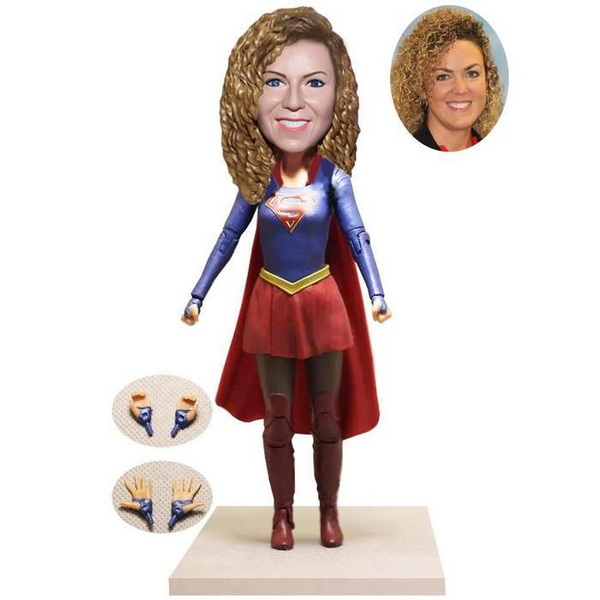
A good Bobblehead Photoshop design is not only about the character; background and typography also matter.
Consider these background strategies:
- Simple gradients or solid colors to keep focus on the Bobblehead.
- Blurred original background using Gaussian Blur to create depth of field without distracting from the Bobblehead.
- Pattern or comic backgrounds with halftone dots, dynamic lines, or abstract shapes that support a fun Bobblehead style.
Make sure your background colors complement the Bobblehead's clothing and skin tones.
You can reinforce the Bobblehead concept with design elements:
- Add the subject's name, role, or a short slogan in bold fonts next to the Bobblehead.
- Use speech bubbles, icons, or badges to create a posterstyle Bobblehead composition.
- Include logos or branding elements if your Bobblehead Photoshop design is part of a campaign or product promotion.
These elements help your Bobblehead integrate into broader graphic design projects.
The Bobblehead Photoshop technique serves both creative and commercial purposes.
Marketers and content creators use Bobblehead imagery to:
- Create recognizable Bobblehead avatars for brand ambassadors and influencers.
- Produce fun, informal profile pictures and “Meet the Team” graphics.
- Design campaign visuals where Bobblehead characters highlight offers or messages.
Because Bobblehead images are visually distinctive, they tend to grab attention quickly in crowded feeds.
If your business sells physical Bobblehead products:
- Use Bobblehead Photoshop techniques to generate digital previews from customer photos before manufacturing real Bobbleheads.
- Show different body templates, outfits, and base styles by reusing the same Bobblehead head with various bodies.
- Create stepbystep visuals that explain how a customer photo becomes a Bobblehead, improving conversion rates.
This approach bridges digital Bobblehead Photoshop design with realworld Bobblehead production and sales.
To make your Bobblehead projects look professional and consistent, keep these best practices in mind.
- Work in high resolution (at least 3000–4000 pixels tall) whenever possible to keep your enlarged Bobblehead head sharp.
- Use Layer Masks and Smart Objects so you can tweak your Bobblehead Photoshop edits without permanent damage.
- Name layers clearly (e.g., “Bobblehead_Head,” “Bobblehead_Body,” “Bobblehead_Shadow”) to stay organized as the project grows.
These habits make complex Bobblehead designs easier to manage and revise later.
- Exaggerate with purpose: a Bobblehead should look intentionally stylized, not like a subtle sizing mistake.
- Match lighting: ensure the head and body have consistent direction and intensity of light, adjusting with Dodge and Burn tools or Curves if needed.
- Keep expressions friendly: Bobblehead characters usually look fun or energetic, so choose source photos with engaging facial expressions.
By following these guidelines, your Bobblehead Photoshop creations will feel polished and appealing.
When learning Bobblehead Photoshop techniques, try to avoid the following errors:
- Using very lowresolution images: Enlarging a tiny head causes blur and pixel blocks, breaking the Bobblehead illusion.
- Rough selections: Hard or jagged edges around hair and neck make the Bobblehead look cutout and fake.
- Ignoring perspective: If the body is shot from a different angle than the head, the Bobblehead will look unnatural.
- Extreme liquify distortion: Overwarping facial features can make the Bobblehead look unsettling instead of fun.
Regularly zoom in to 100% and check edges, textures, and facial details to keep your Bobblehead clean and convincing.
Once you are satisfied with your Bobblehead design, export it properly for its intended use.
- For web and social media, export as JPEG or PNG at around 2000–3000 pixels on the long side with sRGB color profile.
- For print, keep your Bobblehead file at 300 dpi resolution and export to highquality JPEG or PDF, or supply a layered PSD to your designer or printer.
- If your Bobblehead is part of a template or reusable campaign asset, keep the fully layered PSD backed up for future edits.
Correct export settings preserve the detail and vibrancy of your Bobblehead Photoshop work across devices and media.
A Bobblehead Photoshop effect is a flexible, entertaining way to transform ordinary photos into distinctive, bigheadsmallbody characters. By separating the head, enlarging it, adjusting the body, and carefully blending edges and shadows, you can create clean and convincing Bobblehead designs ready for social media, posters, product previews, and corporate campaigns. Advanced options such as cartoon filters, Liquify adjustments, stylized backgrounds, and motion hints allow you to build a recognizable Bobblehead style that fits your brand or creative portfolio.
Whether your goal is to entertain, to showcase mockups for real Bobblehead products, or to create a consistent set of Bobblehead characters for marketing, mastering Bobblehead Photoshop techniques gives you a powerful and reusable toolkit. With practice, you can adapt the same Bobblehead steps to different subjects, themes, and campaigns, making Bobblehead imagery a signature element of your visual strategy.
Contact us to get more information!
The easiest way is to use Select Subject to isolate the person, cut the head to a new layer, enlarge it with Free Transform, and then use a Layer Mask to blend the neck area. Optionally, slightly shrinking the body layer enhances the Bobblehead proportion. This simple process works in almost any modern Photoshop version.
For a basic Bobblehead Photoshop workflow, you mainly need Select Subject, Select and Mask, Free Transform, Layer Masks, the Clone Stamp and Healing Brush, and optionally the Liquify filter. With these tools, you can isolate, enlarge, refine, and stylize a Bobblehead from a standard photo.
There is no fixed rule, but most Bobblehead Photoshop tutorials enlarge the head to between 130% and 200% of its original size. The exact size depends on the style you want. If the head is too small, the Bobblehead effect looks weak; if it is too large, the face may become distorted or visually uncomfortable.
Yes. You can apply the Bobblehead Photoshop technique to each person individually. Duplicate the layer or make separate layers for each person's head, enlarge and position them, and then refine each join with masks. To keep the group Bobblehead effect harmonious, use similar scaling ratios and check that heads do not overlap in unrealistic ways.
To create a cartoonstyle Bobblehead, combine the bigheadsmallbody proportion with stylizing filters. After merging or grouping your Bobblehead layers, apply filters like Poster Edges, Cutout, or Oil Paint, then refine with color grading and contrast adjustments. A bit of Liquify to accentuate eyes or cheeks and a simple, bold background will make your Bobblehead look like a clean cartoon or comic illustration.
1. https://www.youtube.com/watch?v=98yTMvdMZAQ
2. https://www.youtube.com/watch?v=TmLDAjGAk8w
3. https://www.youtube.com/watch?v=i-L93HocR-8
4. https://www.youtube.com/watch?v=H91rG1LAmXM
5. https://www.youtube.com/watch?v=6z_uUpYjyiQ
6. https://www.youtube.com/watch?v=xBWhaRowK9A
7. https://www.dailymotion.com/video/x2trh54
8. https://blog.spoongraphics.co.uk/tutorials/create-funny-caricature-effect-adobe-photoshop
9. https://juiensoi.wordpress.com/2017/08/22/big-head-editing-tutorial-using-adobe-photoshop/
10. https://www.reddit.com/r/photoshop/comments/19555mf/how_do_i_edit_to_get_these_cartoonish_bobble_head/
11. https://www.reddit.com/r/photoshop/comments/1l2ybme/whats_the_easiest_way_to_turn_a_photo_into_a/
12. https://express.adobe.com/page/CMxbv/


